

Most organisations use Microsoft Teams for daily collaboration and Qlik Cloud for their data. Yet the two platforms rarely talk to each other. The result is familiar: decisions delayed because someone needs to "check the dashboard", KPI reports manually copied into a Teams channel every Monday, or a failed reload that nobody notices until a business user opens a stale dashboard.
This article shows you how to close that gap. We cover four practical integrations between Qlik Cloud and Microsoft Teams, from automated alerts and chart images to embedded dashboards and AI-powered data queries, each one designed to bring data into the conversations where decisions are made.
💡This article assumes you have an active Qlik Cloud tenant and a Microsoft Teams environment. Admin access to both is needed for most integrations.
What is possible today
There are four main integration patterns, each serving a different use case:
1. Conversational Analytics
Ask natural language questions about your Qlik data directly in a Teams chat. The Qlik chatbot, powered by Insight Advisor, responds with AI-generated charts and answers pulled live from your Qlik apps. No dashboard required, no context switching.
In practice: A sales manager types "What were last week's top 10 accounts by revenue?" directly in Teams and gets a live Qlik chart back in seconds, without opening a browser.
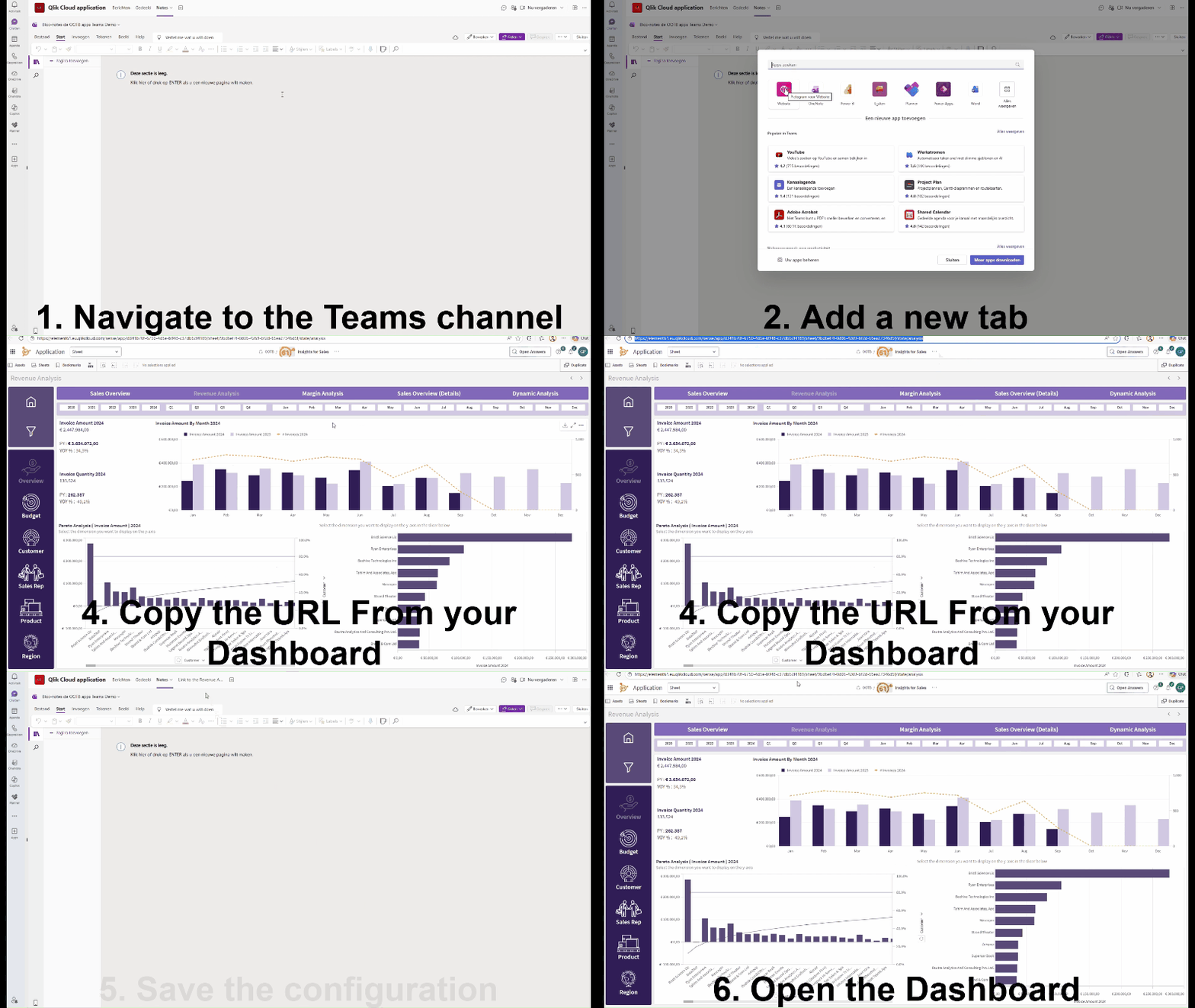
2. Automated Notifications and Alerting
Use Qlik Application Automation to push alerts to a Teams channel when a KPI crosses a threshold or a data reload fails. No manual monitoring, no missed signals jcx Use Qlik Application Automation to push alerts to a Teams channel when a KPI crosses a threshold or a data reload fails. Configured once, runs automatically.
In practice: The finance team receives a Teams message the moment the gross margin KPI drops below 30%, without anyone having to open a dashboard or run a report.
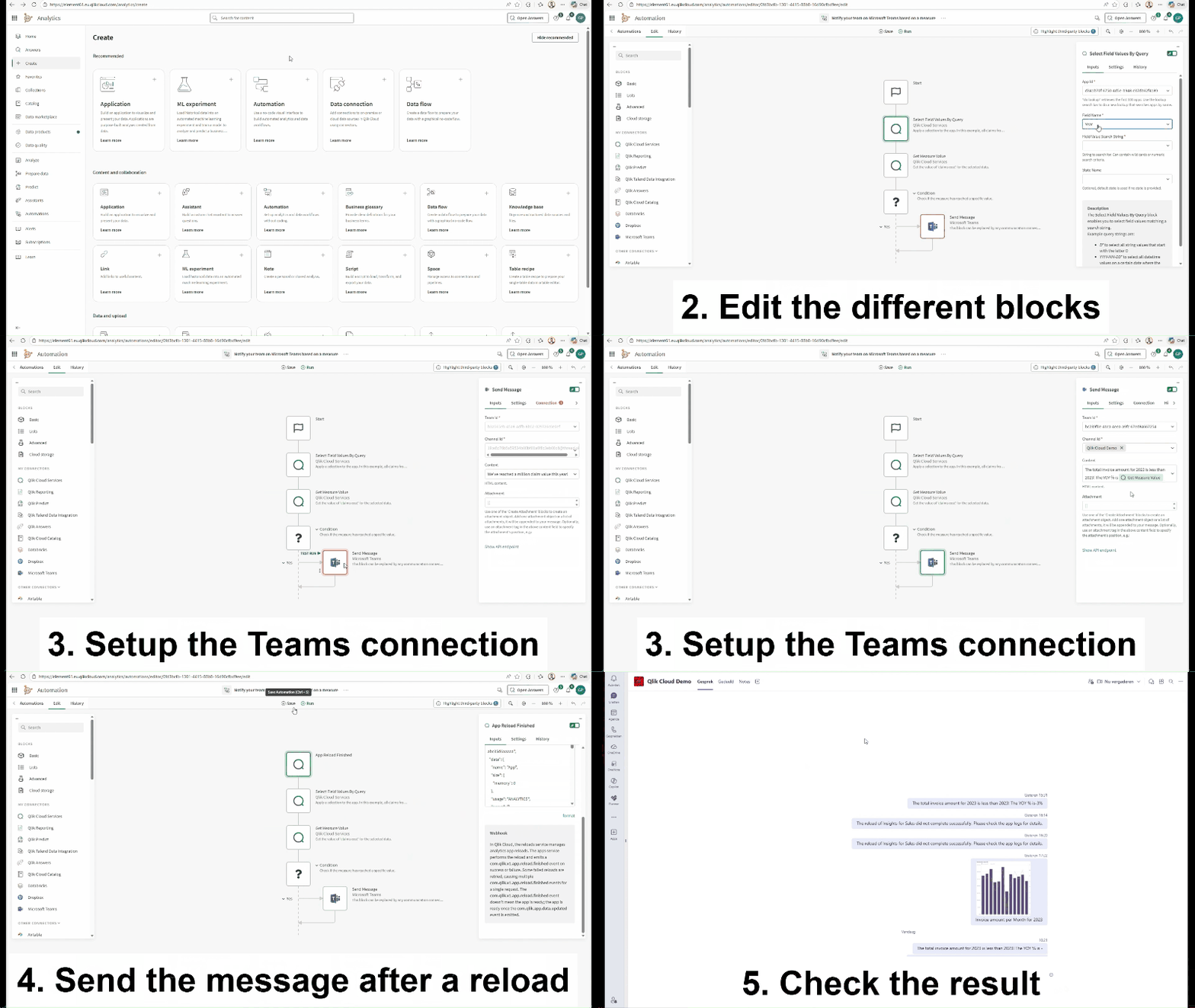
3. Chart Images in Teams
Automatically send a visual snapshot of any Qlik chart to a Teams channel on a schedule or after a data reload. Useful for recurring reports, morning briefings, and standups.
In practice: Every morning at 7 am, after the nightly reload completes, your sales team finds the previous day's pipeline chart waiting in their Teams channel, ready for the standup.
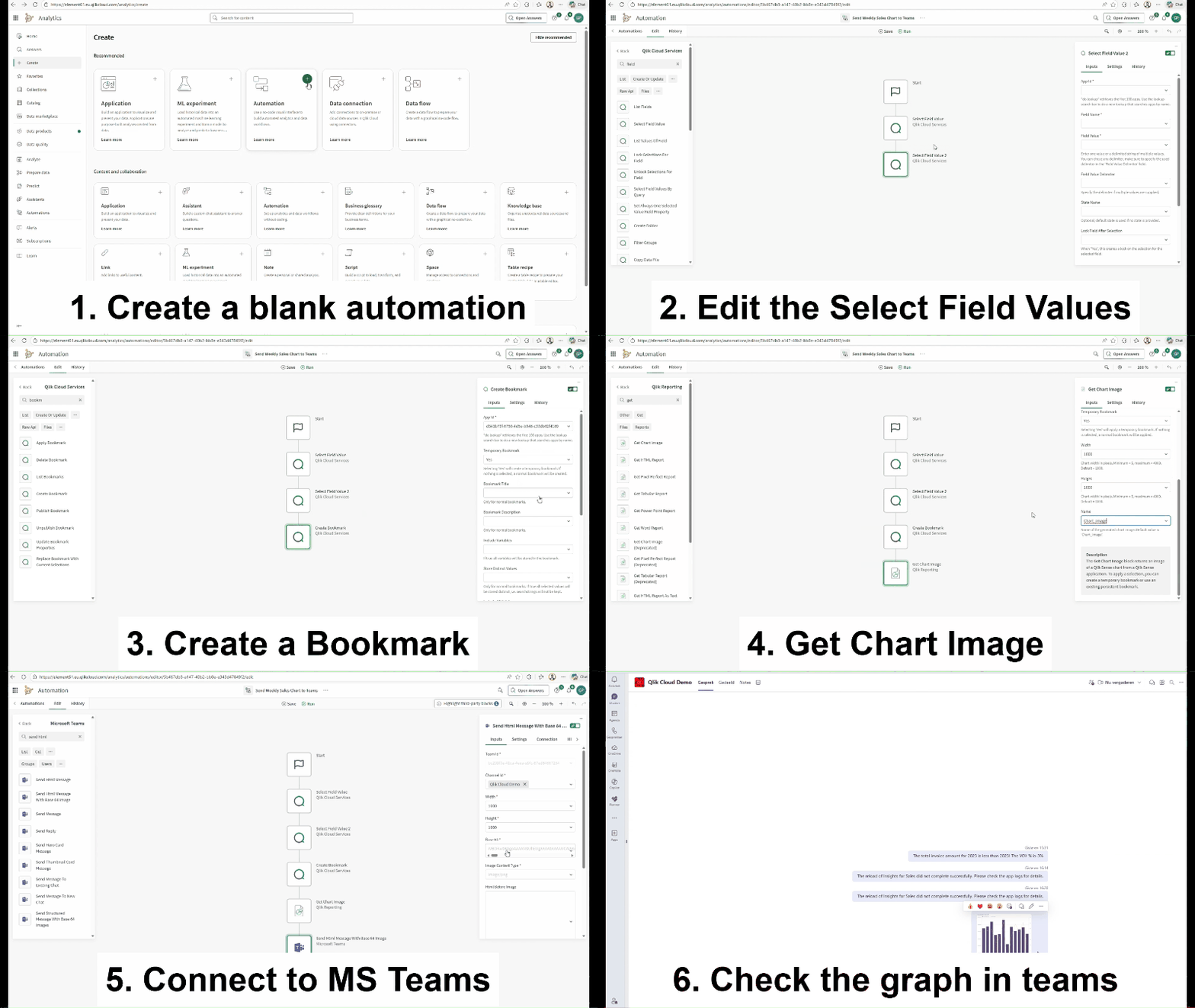
4. Qlik Dashboard as a Teams Tab
Embed a Qlik dashboard directly as a permanent tab inside a Teams channel. Always visible, always up to date. With Azure AD SSO configured, users open it without a separate login.
In practice: The logistics team has their delivery status dashboard pinned as a tab in their Teams channel. Every team member opens Teams in the morning, and the live dashboard is right there, no login, no navigation.
What about AI and MCP
Qlik recently released its Model Context Protocol (MCP) server, a standard that allows AI assistants like Claude and ChatGPT to connect directly to Qlik Cloud and query live data using natural language. This goes beyond predefined dashboards: instead of navigating to a report, a user simply asks a question and the AI retrieves the answer from Qlik in real time, applying the same data model, calculations and security rules as the native Qlik experience.
A direct Teams integration for Qlik MCP does not exist yet. However, a working path is available today via Microsoft Copilot Studio.
What does it look like in practice
A user opens a Teams chat, types "Show me the top 5 customers by revenue this quarter" and receives a Qlik-powered answer directly in the conversation, without opening a dashboard or switching applications. Behind the scenes, a Copilot Studio agent interprets the question, calls the Qlik MCP server, retrieves live data from your Qlik app and returns the result.
What does the setup involve
At a high level, the setup consists of three steps:
- Enable Qlik MCP on your Qlik Cloud tenant and create an OAuth client to allow Copilot Studio to authenticate
- Create a Copilot Studio agent, connect it to the Qlik MCP server as a tool and configure it with instructions describing what data it has access to
- Deploy the agent to Teams via the Copilot Studio Channels settings, making it available to users in their Teams chat or Copilot interface
The full setup requires tenant admin access in both Qlik Cloud and Microsoft 365, and a Microsoft 365 Copilot licence for deployment to Teams.
Honest assessment
This works today, but both Qlik and Microsoft are still evolving the underlying APIs. During our own setup, we encountered compatibility challenges around OAuth authentication between Qlik and Copilot Studio, which required some workarounds. Expect some rough edges, particularly around authentication configuration.
A detailed step-by-step guide covering the full setup, including the workarounds we found, is available for teams who want to explore this path.
What does it take to get started
The integrations vary in complexity:
| Integration | Complexity | Requirements | Prerequisites |
|---|---|---|---|
| Conversational Analytics | Medium | Qlik admin + M365 admin setup | Qlik Cloud tenant, Microsoft 365 tenant, Qlik Answers must be disabled |
| Automated Alerting | Low | Qlik Automation access | Qlik Cloud tenant, Microsoft Teams OAuth connection in Qlik Automation |
| Chart Images | Low | Qlik Automation access | Qlik Cloud tenant, Microsoft Teams OAuth connection in Qlik Automation |
| Dashboard Tab | Very low | Teams channel access | Active Qlik Cloud app published to a shared or managed space |
| Qlik MCP via Copilot Studio | High | M365 Copilot licence + admin rights |
Qlik Cloud tenant with MCP enabled, Microsoft 365 Copilot licence, Copilot Studio access |
One important limitation to know
If your Qlik Cloud tenant has Qlik Answers enabled, the conversational analytics integration (Insight Advisor Chat in Teams) is not available. Qlik Answers and Insight Advisor Chat are mutually exclusive at the tenant level. In that case, the Qlik MCP path via Copilot Studio is the recommended alternative.
📖 Official source: Qlik Help — Insight Advisor Chat in Microsoft Teams
Conclusion
The integration between Qlik Cloud and Microsoft Teams is not a single feature but a collection of complementary capabilities. The simpler integrations, such as automated alerts, chart images, and dashboard tabs, are production-ready and can be up and running in under an hour. The more advanced path via Qlik MCP and Copilot Studio is promising but still maturing. Start with what solves your most immediate pain point and build from there. For teams ready to go further.
Ready to go further? element61 can help you design and implement the right integration for your environment. Contact us!
FAQ
There are four main integration patterns: (1) Conversational Analytics — ask natural-language questions of your Qlik data in a Teams chat; (2) Automated Notifications and Alerting when a KPI crosses a threshold or a data reload fails; (3) Chart Images sent to a channel on a schedule or after a reload; and (4) a Qlik dashboard embedded as a permanent Teams tab.
Conversational analytics lets users ask natural-language questions about their Qlik data directly in a Teams chat. The Qlik chatbot, powered by Insight Advisor, responds with AI-generated charts and answers pulled live from your Qlik apps, no dashboard and no context switching required. For example, a sales manager can type "What were last week's top 10 accounts by revenue?" and get a live Qlik chart back in seconds.
Using Qlik Application Automation, you can push alerts to a Teams channel automatically when a KPI crosses a threshold or a data reload fails. Configured once, it runs on its own - no manual monitoring, no missed signals. For instance, the finance team receives a Teams message the moment gross margin drops below 30%, without anyone opening a dashboard. It is one of the lowest-complexity integrations to set up.
Yes. You can embed a Qlik dashboard as a permanent tab inside a Teams channel, so it is always visible and always up to date. With Azure AD single sign-on configured, users open it without a separate login. We rate this the lowest-complexity integration; a logistics team can pin their live delivery-status dashboard and see it the moment they open Teams each morning.
Qlik's Model Context Protocol (MCP) server is a standard that lets AI assistants such as ChatGPT and Claude connect directly to Qlik Cloud and query live data in natural language. Instead of navigating to a report, a user asks a question, and the AI retrieves the answer in real time, applying the same data model, calculations, and security rules as the native Qlik experience.
A direct Teams integration for Qlik MCP does not exist yet, but a working path is available today via Microsoft Copilot Studio. A user types a question like "Show me the top 5 customers by revenue this quarter" in Teams; behind the scenes, a Copilot Studio agent interprets it, calls the Qlik MCP server, retrieves live data from your Qlik app, and returns the answer directly in the conversation.
The setup involves three high-level steps: enable Qlik MCP on your Qlik Cloud tenant and create an OAuth client; build a Copilot Studio agent, connect it to the Qlik MCP server as a tool, and configure its data access; then deploy the agent to Teams via Copilot Studio's channel settings. It requires tenant admin rights in both Qlik Cloud and Microsoft 365, plus a Microsoft 365 Copilot licence.
If your Qlik Cloud tenant has Qlik Answers enabled, the conversational analytics integration (Insight Advisor Chat in Teams) is not available; the two are mutually exclusive at the tenant level. In that case, we recommend the Qlik MCP path via Copilot Studio as the alternative for bringing AI-powered Qlik queries into Teams.
The integrations vary in complexity. The simpler ones - automated alerts, chart images and dashboard tabs - are production-ready and can be running in under an hour. The more advanced Qlik MCP and Copilot Studio path is promising but still maturing, with some rough edges around OAuth authentication. element61 advises starting with whatever solves your most immediate pain point and building from there.
element61 can help you design and implement the right Qlik Cloud–Teams integration for your environment, from quick wins like alerts and dashboard tabs to the more advanced Qlik MCP and Copilot Studio path, including the authentication workarounds needed to make it run smoothly. Reach out to element61 for a tailored roadmap.