


TL;DR
Moving from Qlik NPrinting to Qlik Cloud Reporting is mostly export, upload, done, but we hit five gotchas on a recent customer migration:
- Hidden (prefixed) fields used in a Level can make a template fail to import.
- Drag and drop can fail with a misleading error where the Browse button works.
- "Image Source: (none)" on a Picture Box is normal, not a broken binding.
- Grey, incomplete charts are often just a missing selection at generation time.
- Report Tasks need a recipient, which requires an app reload. There is a workaround if you can't reload.
Bonus: one template can serve two languages, but it's more work than it looks.
The migration in detail
Qlik NPrinting ships with a built-in export feature that packages every NPrinting report template for a given app and connection into a single zip file, ready to be uploaded into the app's own Reporting section in Qlik Cloud.
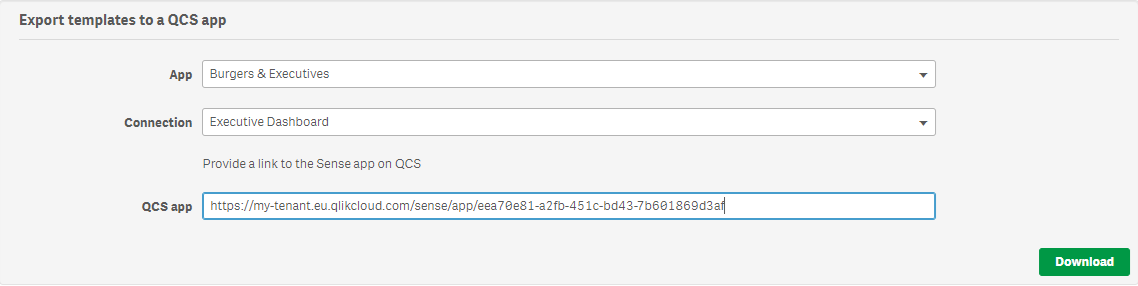
On paper this makes migrating years of NPrinting report templates almost mechanical. On a recent customer migration (8 templates, NPrinting February 2025 to Qlik Cloud), that is largely what happened. We also ran into a handful of issues that we did not find in Qlik's documentation, and that cost real time to track down. Here is what we learned.
First, what Qlik does document. Check these limitations before you start:
- Dynamic naming, cycling and filters are not imported. You need to recreate them in Qlik Cloud.
- Templates connected to QlikView documents or to multiple Qlik Sense apps are not supported, and are left out of the export.
- Export support depends on your NPrinting version and template type: Excel from February 2024, PixelPerfect from February 2025, HTML from February 2025 SR3, Word and PowerPoint from May 2026.
- Macros in Office templates and scripts in PixelPerfect templates are removed, and HTML templates are sanitised on upload. Validate every migrated template after import.
- In-app reporting is not available for apps published or distributed from client-managed Qlik Sense. Migrate the app with the Qlik Analytics Migration Tool, or export it and upload it again.
- The export ZIP contains a log file with error messages. Read it: templates with unsupported features are not added to the export.
Hidden fields can silently break the import
Several of our templates refused to import, each time with a parsing error mentioning a field name and the word Level. The cause turned out to be a naming convention, not a bug in our data.
Qlik Sense hides fields in the same way as system fields when the load script says so, via the HidePrefix variable: SET HidePrefix='%'; hides every field whose name starts with %. The % prefix is a widespread convention, but it is a setting, not a fixed rule, so your app may define a different one. In our case it was %; we did not test what happens with other prefixes.
An NPrinting Level cycles report elements through the distinct values of a field, or through the rows of a straight table, so the report shows one section per value (for example one section per region). Normally, a Level takes its name from the chart object it is bound to (an internally generated code), not from a field. But if a Level is built directly on a field instead of on an object, NPrinting falls back to using that field's own name for the Level. If the field is one of the hidden, %-prefixed fields, the resulting Level name also starts with %, and Qlik Cloud's importer rejects the whole template outright.
The fix is straightforward once you know to look for it: rebuild the Level bound to a chart object instead of the bare field, or remove it before export if it isn't strictly needed.
To catch this before you export:
- Search the load script for HidePrefix to see which prefix, if any, the app defines.
- List the fields that start with that prefix, from the load script or by showing system fields in the field list.
- Compare that list with the fields your NPrinting Levels are built on. Any overlap is a template at risk.
Drag and drop isn't always reliable
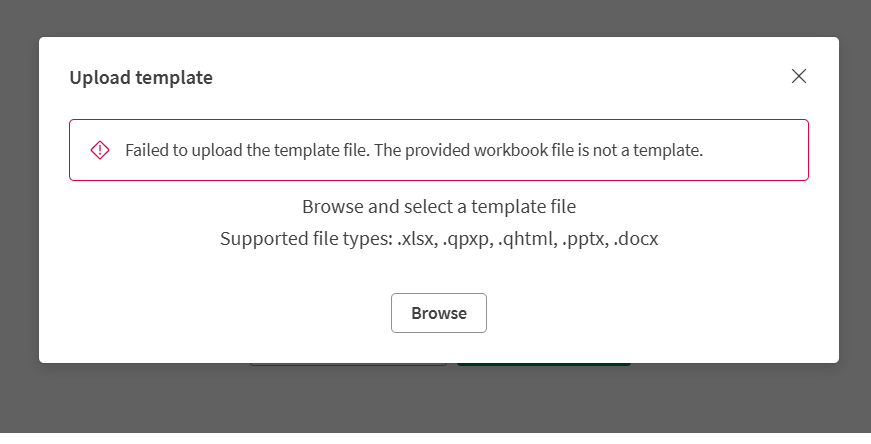
Multiple templates failed every time we dragged them onto the upload area in Qlik Cloud Reporting. The error pointed to the wrong cause ("The provided workbook file is not a template", see below). The exact same files uploaded without issue through the ordinary Browse button of the file picker.
We used Edge; the failure reproduced every time, and file size did not play a role (the templates were between 150 and 350 KB). If an upload fails or throws a misleading error, try Browse before assuming the file itself is corrupt.
An empty-looking image binding doesn't mean a broken one
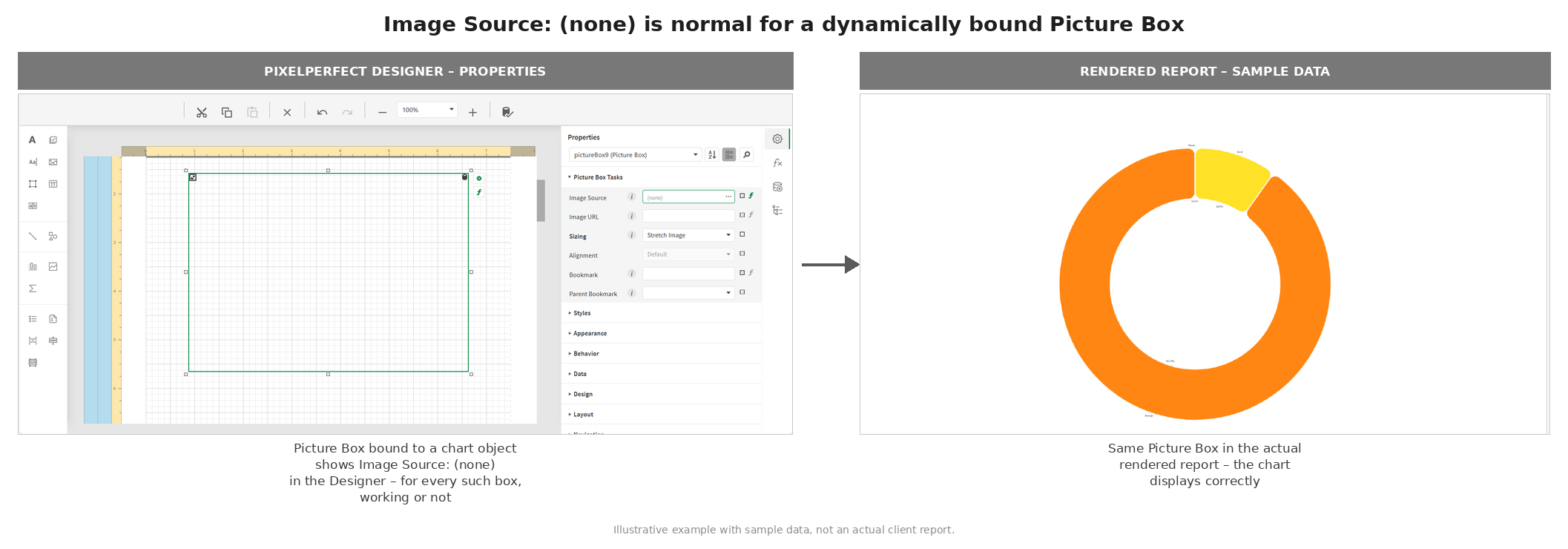
After import, several Picture Boxes showed Image Source: (none) in their properties. It looks alarming, but it turns out to be completely normal for any Picture Box that is bound dynamically to a chart object: we confirmed this by inspecting the template's internal binding data directly. Every dynamically bound image looks this way, working or not, so it is not a diagnostic signal on its own.
A grey or incomplete chart is often a missing selection, not a broken report
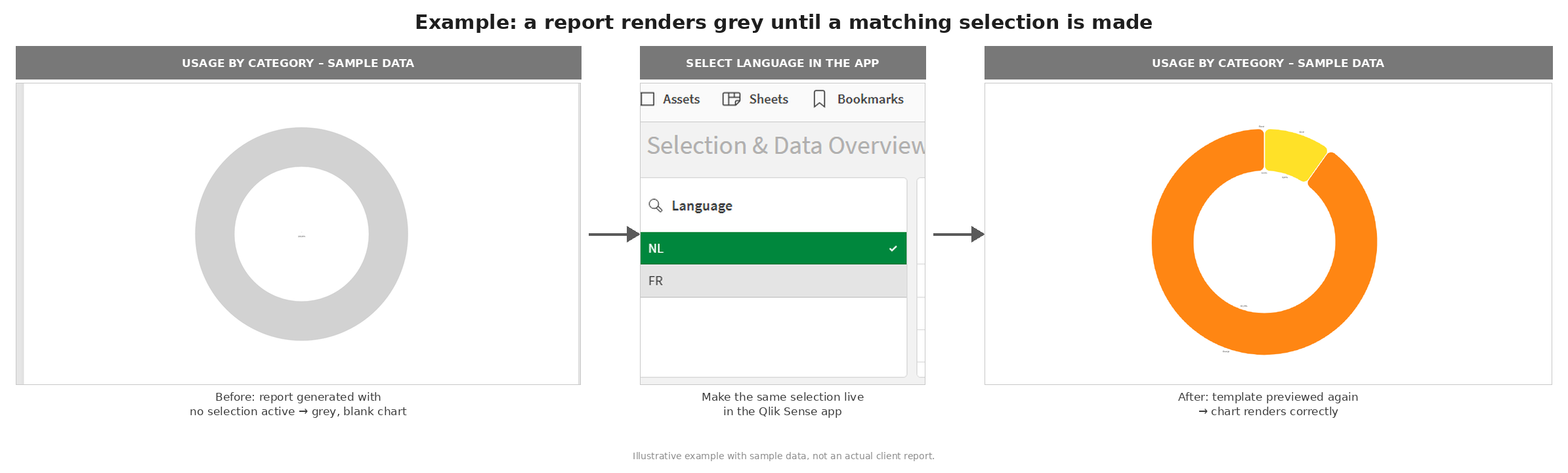
This was the most surprising one. A generated report showed several donut charts rendering completely grey, with an Incomplete visualization warning, even though every binding checked out.
The actual cause: the report was being generated with no live selection active in the app, while several of its chart expressions depend on a current period. Once we made the same selection live in the Qlik Sense app that the report's own filters expect, and generated the report again, every element rendered correctly. Before assuming a migrated report is broken, check what is or isn't selected in the app at the moment it's generated. This matches Qlik's documentation: report previews and on-demand reports reduce data by the current selections in the app, whereas report tasks use report filters instead.
Report Tasks need a recipient, and a recipient needs an app reload
Cloud Report Tasks require at least one recipient before they can be created. Qlik's documentation states that a distribution list must be defined before you create a report task, and that uploading a source file adds a script section and reloads the app. What we did not find is guidance for the case where the app can't be reloaded and has no distribution list yet.
Qlik documents two ways to define the distribution list: uploading a specifically formatted Excel file, or tagging fields in the load script (DL_DISTRIBUTION_SVC__recipientName, DL_DISTRIBUTION_SVC__recipientEmail, DL_DISTRIBUTION_SVC__recipientFilters, DL_DISTRIBUTION_SVC__groupsName and DL_DISTRIBUTION_SVC__groupDescription), which can pull recipient data from any existing connection, including a database table. There is no other option, such as typing an email address when you create the task.
Both routes go through the load script, so both need a reload. On a project where the app cannot be reloaded, for example a duplicated or shared copy, they are blocked. For apps in managed spaces, Qlik's documentation adds that the distribution list cannot be edited from the Reporting section, and advises uploading a mock distribution list file (or referring to the sources in the script) before publishing the app.
The workaround has a limit: it does not give you automated distribution. You don't need a Report Task to produce a correctly filtered report. Make the selections you want live in the Qlik Sense app itself, then use the report template's own Preview function in the designer. Qlik's documentation states that previews reduce data by the current selections in the app, so you get a correctly filtered one-off output without needing a recipient. That is enough to validate a migrated template or deliver a report by hand, but scheduled distribution still requires a Report Task, and therefore a reloadable app.
Bonus: can one template serve two languages
A question we hear often: can a single report template switch language automatically, instead of maintaining a Dutch and a French version side by side?
The short answer is yes, but with a caveat: every text element and chart needs a version per language, and each version needs its own show condition, so the work grows with the number of language-specific elements.
A single template can show different text or a different chart depending on the selected language: place both versions in the same spot and set the Visible property of each to a condition. For the French version, ours looks like [Language (Language_Level).Language] ='FR' (see below); the other version uses the same condition with its own language code. Getting that right took some trial and error.
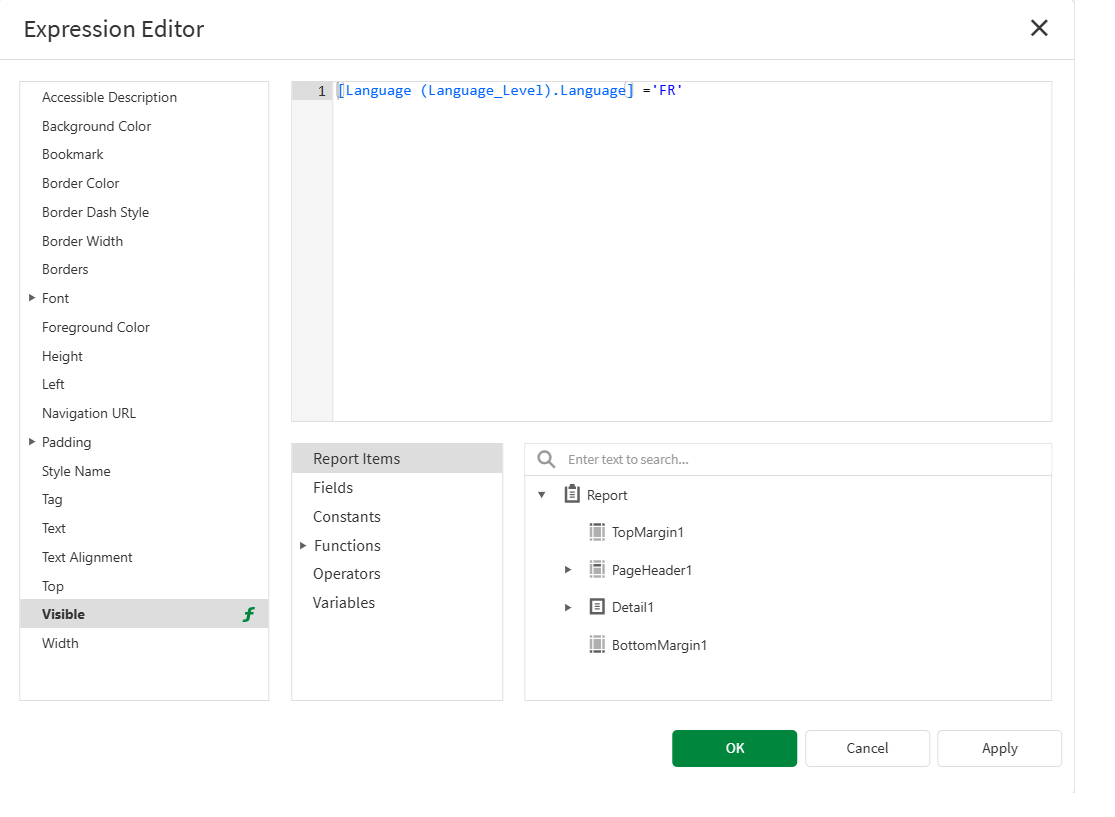
That's a good reminder that "just switch the language" is usually a bigger job than it looks, but a solvable one.
Closing thought
What stood out was not difficulty: Qlik's export and import tooling does most of the work. The rough edges we hit (a hidden-field naming convention, an unreliable drag and drop, a chart that looked broken but wasn't) are easy to handle once you know to look for them, and no reason to hesitate to start.
For questions or more information about migrating from Qlik NPrinting to Qlik Cloud Reporting, please contact us.
FAQ
We use NPrinting’s built-in export to package report templates for an app and connection into a ZIP file, then upload them into the app’s Reporting section in Qlik Cloud. In our recent migration of eight templates, this handled most of the work. We still validated each imported template and investigated issues with Levels, uploads, images, selections and recipients.
We recommend checking template support against your NPrinting version before exporting. Excel export starts with February 2024, PixelPerfect with February 2025, HTML with February 2025 SR3, and Word and PowerPoint with May 2026. Dynamic naming, cycling and filters need recreating in Qlik Cloud. We also read the export log and validate templates because macros and scripts are removed.
In our migration, a Level built directly on a hidden field inherited that field’s name. Because our app used HidePrefix with the % prefix, the Level name also began with %, and the importer rejected the template. We resolved this by binding the Level to a chart object instead, or removing unnecessary Levels. We did not test other prefixes.
We first check the app’s load script for HidePrefix to identify its configured hidden-field prefix. We then list fields starting with that prefix and compare them with the fields used directly by NPrinting Levels. Any overlap deserves review before export. This check targets the naming issue we encountered, rather than assuming every app uses the % convention.
We recommend trying the Browse button before treating the template as corrupt. In our Edge tests, dragging files into the upload area repeatedly produced a misleading workbook error, while uploading the same files through Browse succeeded. Our affected templates were between 150 and 350 KB, and file size did not explain the failures we observed.
We found that a dynamically bound Picture Box can display Image Source: (none) even when its chart binding works correctly. We confirmed this by inspecting the template’s internal binding data. We therefore do not use that property alone to diagnose an imported report: dynamically bound images can show it whether they work or not.
In our project, grey donut charts with an Incomplete visualization warning resulted from missing live selections, not broken bindings. Their expressions depended on a current period. After we activated the expected selection in the app, the charts rendered correctly. We check selections for previews and on-demand reports; report tasks use report filters instead. Contact us to discuss your migration.
We need at least one recipient to create a Report Task. Recipients come from a distribution list, defined through a formatted Excel upload or tagged load-script fields. Both routes require an app reload; there is no option to type an email address directly into task creation. For managed spaces, we prepare the distribution list before publishing. Reach out to element61 for migration questions.
When we cannot reload an app or define recipients, we make the required selections live in the Qlik Sense app and use the template designer’s Preview function. This produces a filtered one-off output for validation or manual delivery. It does not provide automated distribution: scheduling still needs a Report Task and a reloadable app. Contact us via element61.be to discuss the constraints.
We can place language-specific text elements or charts in the same position and control each version with a Visible condition based on the selected language. In our example, the French version checks for FR. However, every language-specific element needs its own version and condition, so the maintenance effort grows with the number of elements rather than disappearing.
